Living in the Past: The Hidden Costs of Hoarding Old Software Versions on Your PC
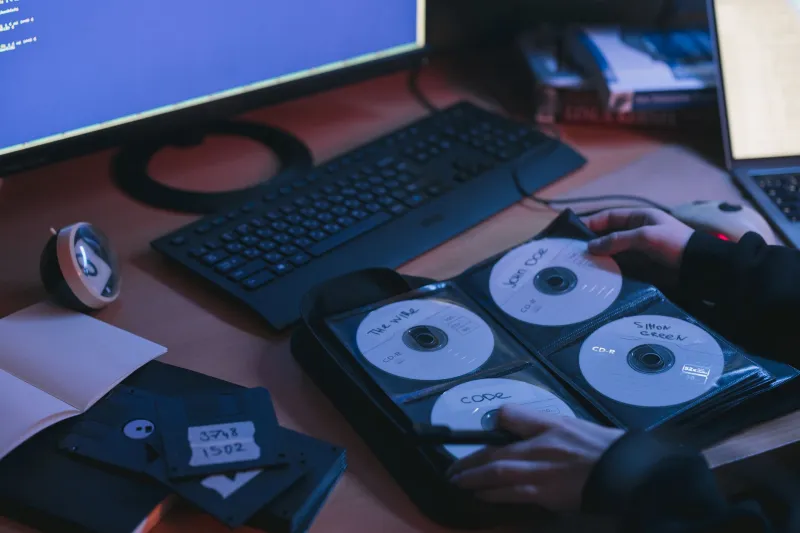
There's a certain kind of software user — and honestly, most of us have been this person at some point — who finishes updating an app, immediately regrets it, and vows never to let go of the old version again. Maybe the new UI is worse. Maybe a feature you relied on got removed. Maybe you just don't like change.
So the old installer sits in a folder. The previous version stays installed alongside the new one. Or worse, the update never happens at all, and a three-year-old version of the software just keeps running on your machine, year after year, quietly accumulating problems you don't know about yet.
This is version hell. And it's more expensive than it looks.
The Storage Problem Nobody Talks About
Let's start with the obvious one: disk space. Old software versions take up room, and that room adds up faster than most people expect.
Consider a creative professional running Adobe products. If they've been through three or four major Creative Cloud versions and kept the old ones around "just in case a project needs them," they might be sitting on 20-40GB of legacy installs — sometimes more. Video editing suites are even worse. DaVinci Resolve, for example, doesn't always cleanly overwrite old versions. You can end up with multiple full installations living side by side.
Beyond the apps themselves, old versions often leave behind cache files, preference folders, and support libraries scattered across your drive. These orphaned files don't disappear when you stop using the software. They just sit there, quietly eating storage.
On a 256GB SSD — still common in budget and mid-range laptops — that's not a trivial problem. Storage bloat from version sprawl can meaningfully slow down your system, especially if it's pushing your drive toward capacity.
The Security Angle Is Scarier Than You'd Think
Storage is annoying. Security vulnerabilities are genuinely dangerous.
Every piece of software has bugs. Some of those bugs are security flaws that can be exploited by malicious actors to access your system, steal data, or install malware. When a developer discovers and patches one of these flaws, they push an update. If you're running an old version, that patch never reaches you.
This isn't theoretical. Some of the most widespread cyberattacks in recent history — including the WannaCry ransomware outbreak that caused billions in damage globally — succeeded largely because organizations were running outdated software with known, patchable vulnerabilities.
For everyday users, the risk is more personal than corporate. Outdated browsers are a prime attack vector. Old PDF readers can be exploited through malicious documents. Legacy versions of file archiving tools have been used to execute code on victims' machines. And because old software doesn't receive security updates, these holes stay open indefinitely.
The software you never update is the software that can be used against you.
Performance Drag: When Old Code Fights New Hardware
Here's a subtler problem: old software wasn't written for your current hardware or operating system.
An app from 2019 was optimized for the CPUs, GPU architectures, and Windows builds of that era. Running it on a 2024 machine with a modern OS can create friction — inefficient memory usage, poor multi-core utilization, compatibility shims that eat resources in the background. The app runs, but not as well as it could.
Worse, old software can conflict with newer system components. An outdated audio driver package from a legacy DAW installation might fight with your current audio stack. An old version of a .NET runtime left behind by an obsolete app can create weird behavior in completely unrelated software. These interactions are hard to diagnose and easy to overlook.
The Compatibility Nightmare
If you work with other people, old software versions create a different kind of headache: file compatibility.
Document formats evolve. A file created in a recent version of Microsoft Office may not open correctly — or at all — in a version from several years ago. The same applies to design files, spreadsheets, project files, and just about any format that has active development behind it. If you're the person on your team clinging to an old version, you're eventually going to be the person who can't open the file everyone else is using.
This runs both directions. Files you create in old software might not render correctly when colleagues open them in newer versions. What looks right on your screen can look broken on theirs.
When Keeping an Old Version Actually Makes Sense
This isn't a universal case for always updating everything immediately. There are legitimate reasons to hold onto older versions — but they're narrower than most people assume.
Legacy creative projects are the clearest case. If you have an ongoing project built in a specific version of a tool, and updating that tool would break the project, keeping the old version installed for that project is reasonable. Just don't use it for anything new, and plan to migrate eventually.
Stability in professional environments is another valid reason. Some industries — audio production, broadcast, certain engineering workflows — are notoriously cautious about updating mid-project because new versions can change behavior in ways that affect output. This caution is earned. But it should come with a plan: update between projects, not never.
Subscription fatigue is real but dangerous. If you're clinging to an old version because you don't want to pay for the new one, understand that you're trading money savings for security risk. That's a trade-off you should make consciously, not by default.
The Clean Break Strategy
For most users, the better approach is a clean break: fully uninstall old versions before or shortly after upgrading. Use a tool like Revo Uninstaller to catch the leftover files and registry entries that standard uninstallers miss. Do a quick search for old version folders in your user directory.
If you're worried about losing access to a feature or workflow that might disappear in the new version, document it first. Test the new version before committing. But set a deadline — if the old version is still sitting on your machine six months after you installed the new one, it's probably time to let it go.
Version nostalgia is understandable. But your PC's security, performance, and storage don't care about your feelings about the old toolbar layout. At some point, the past costs more than it's worth.