The Empty Recycle Bin Is a Lie: What Recovery Software Can and Cannot Get Back
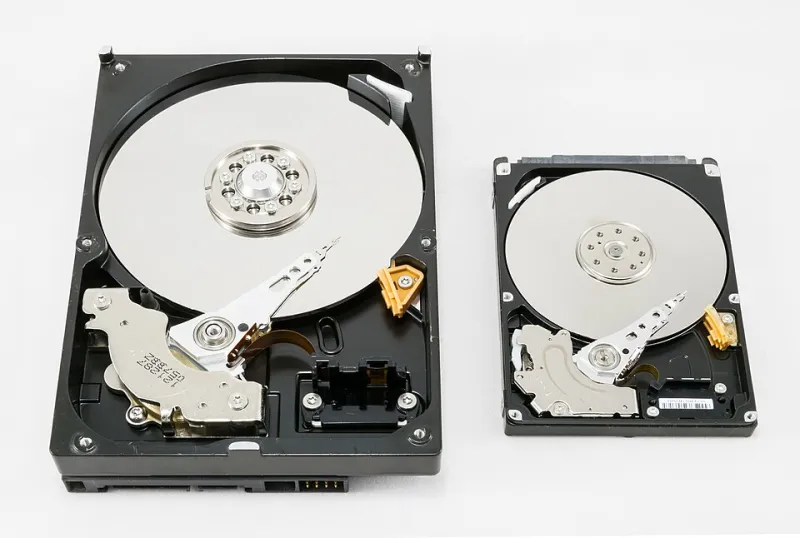
Photo: Jacek Halicki, CC BY-SA 4.0, via Wikimedia Commons
A client called me last spring in a genuine panic. Three years of family photos, an external drive, a formatting prompt that said something about compatibility, and a click. By the time we talked, they had already installed two recovery programs - both onto the same external drive - and run a third from a folder they created on it.
That is the part that hurts. The drive was probably recoverable when the call started.
File recovery software is real technology that does real work. It is also sold with promises that overshoot the physics by a wide margin. If you understand the physics, you can usually tell within a minute whether a recovery attempt has a chance.
What delete actually does
When you delete a file in Windows or macOS, the operating system removes the file's directory entry - the pointer that says this name lives at these disk locations - and marks the space it occupied as available. The actual bytes are still sitting there, untouched, until something new needs that space.
That is why recovery is possible at all. The data is not gone. It is merely unclaimed.
Two things reset the clock. The first is new writes: the moment another file claims that space, the old bytes are overwritten, and no software on earth will bring them back. The second is TRIM, and it is the reason modern recovery outcomes are so much worse than they were a decade ago.
TRIM changes everything on SSDs
SSDs cannot overwrite individual cells the way spinning disks do; they have to erase a block before writing to it. TRIM is the command that tells the drive which blocks are no longer needed so it can erase them in the background, ready for the next write.
On a modern machine, Windows runs optimization weekly and macOS runs its equivalent, so deletion on an internal SSD often means the data is physically wiped within days - sometimes within minutes if the drive is idle and eager. The same applies to NVMe drives and to most USB flash media, which use the same controller logic.
Practical translation: file recovery on an internal SSD is a coin flip at best. On a spinning hard drive, it is often very successful. On an SD card pulled from a camera mid-shoot, it is frequently excellent, because nothing has written to it since.
Quick format is not a wipe
A quick format rewrites the file system structures - the table of contents - and leaves the data in place. That is why formatting does not stop recovery; it just removes the map. A full format writes zeros across the entire volume, and after that there is nothing to recover, full stop.
Some tools offer a secure erase with multiple passes. That is overkill for modern drives but it does what it claims. The point is that the two operations share a name and have almost nothing else in common.
First steps, in order, before you install anything
This list is the entire article in practice. If you skip to the software, you have already lost ground.
- Stop using the drive. Do not open files on it, do not save anything to it, do not run a virus scan that writes logs to it.
- Do not install recovery software on the affected drive. Install it on a different disk, or run it from a USB stick on another computer entirely.
- If the drive is failing mechanically - clicking, grinding, dropping in and out - stop immediately. Software recovery on a dying drive makes it worse. That is a job for a clean room service, and it is expensive. Everything below assumes the hardware is healthy.
- Image the drive if the data matters a lot. Tools like ddrescue on Linux, or any reputable disk imaging utility, create a byte-for-byte copy. Run recovery against the copy so you can try again without touching the original.
- Then scan. Read-only scan first, always.
What the tools can genuinely do
Recovery software shines in a handful of well-defined situations: recently deleted files on a hard drive that has not been written to; photos and videos removed from a camera card; a quick-formatted external drive; a partition table that got mangled by an interrupted resize or a power loss; a drive that suddenly mounts as RAW; documents emptied from a folder before a backup sync caught them.
It also succeeds at something more mundane and more useful than people realize: undeleting a file that was replaced by a newer version, from a folder that kept churning.
What they cannot do, no matter what the sales page says
Overwritten data is gone. Encrypted data is gone without the key - and that includes ransomware, which is a backup problem, not a recovery problem. Physically damaged platters are not a software problem. And on a heavily used SSD, there is often simply nothing left to find.
The other oversell is the preview. Many tools will scan, show you a beautiful thumbnail gallery of your photos, and then refuse to save any of them without a license. That is not fraud exactly - the scan is real - but it means the free demo tells you almost nothing about whether recovery will actually complete. Budget for the license if the scan looks promising, or test a free trial on a smaller, less important drive first to see how the interface handles the save step.
Free options worth trying first
There are genuinely good free tools, and they should be your first pass. PhotoRec, which ships alongside TestDisk, is ugly and command-line and has been rescuing files since the era of MS-DOS, and it ignores the file system entirely to carve files out by signature - which makes it excellent on badly damaged volumes. Recuva is friendlier and free with no real limits on the essentials. Microsoft has published its own command-line recovery utility in recent years, which is worth trying if your setup matches its requirements.
Paid tools from established vendors have better interfaces, better support for modern file systems, and better reassembly of fragmented video files. If the data is worth money to you, the forty or eighty dollars is not the objectionable part. The objectionable part is buying a license before you know whether a scan finds anything.
The unglamorous answer
Recovery software is a parachute. It is excellent to have, it occasionally saves you, and it is no substitute for not falling out of the plane. Two copies of anything important in two places beats any rescue tool ever written, and a drive that has never had anything deleted is the only drive with a perfect recovery record.
If you are reading this because it already happened: stop writing to the disk, move to another machine, and scan before you save.